LibreOffice 5.3 Comes with New Features
LibreOffice 5.3 comes with plenty of new features, including the much-awaited ribbon interface, which is immensely popular in Microsoft Office. This feature is now available in the latest release.
Install LibreOffice 5.3 on Ubuntu, Linux Mint, and Elementary OS
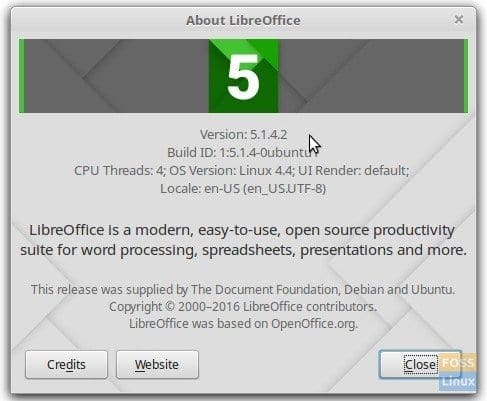
LibreOffice 5.3 is not yet available in the official repositories, meaning the apt-get command will not fetch the latest version. If you already have LibreOffice installed, it is likely version 5.1 (as of February 8, 2017). To check your LibreOffice version, open any application from the suite, then go to Help > About.
Uninstall Older Version of LibreOffice
Step 1: Launch the Terminal.
Step 2: Run the following command. If you're using Elementary OS, you may first need to enable the PPA before executing the command below. This command will remove the LibreOffice suite from your PC:
sudo apt-get remove libreoffice-coreStep 3: To clean up the configuration files, run the purge command:
sudo apt-get remove --purge libreoffice-coreThat’s it! The older version of LibreOffice is now uninstalled from your PC, and you can go ahead and install LibreOffice 5.3.
Install LibreOffice 5.3
Step 1: Since the PPA doesn’t have the 5.3 version yet, you need to download the Debian binary package (.deb) from the official website.
Download LibreOffice 5.3 64-bit version Download LibreOffice 5.3 32-bit versionStep 2: Assuming the downloaded file is in your Downloads directory, extract the contents.
Step 3: Launch the Terminal.
Step 4: Navigate into the Downloads directory:
cd DownloadsStep 5: Use the ls command to list the folder contents:
lsStep 6: Copy the name of the extracted folder. You can right-click and select "Copy" to do this.
Step 7: In my case, it’s a 64-bit version. I would navigate into the LibreOffice_5.3.0.3_Linux_x86-64_deb directory:
cd LibreOffice_5.3.0.3_Linux_x86-64_debStep 8: Now, go into the DEBS directory, where all the installation files are located:
cd DEBSStep 9: Finally, run the dpkg command to install LibreOffice 5.3:
sudo dpkg -i *.debYou’ve now finished installing LibreOffice 5.3 on your computer. Enjoy!
This tutorial is copied for future reference from FossLinux written by Kiran Kumar.
Leave a Comment